
Tested October–November 2026
As a Pinterest strategist, I spend a good part of my workweek researching content for clients. For this Pinsearch review, I wanted to see how the tool would fit into that work. It brings keyword research, competitor research, Pin creation, and scheduling into one tool. There’s quite a bit packed in there, and I wanted to spend some time using it before deciding whether I’d recommend it.
I started with the free account, then Pinsearch gave me guest access to the paid Pro plan so I could explore more of the features for this review. They also feature a testimonial from me about keyword discovery and content research, and I’ve shared feedback with them during testing.
For someone managing their own blog, paying for several Pinterest tools can add up quickly. I wanted to see how far you could get with this one. Could I find useful keywords, see what the competition was doing, and put that research to work on an actual article?
Pinsearch gave me guest access to the paid Pro plan so I could explore its features for this review. Beyond that access, I received no payment or other compensation for this article. There are no affiliate links on this page. The opinions and observations are my own.
My Quick Verdict
If I wanted one paid tool to research Pinterest content and turn that research into a Pin plan, Pinsearch would be on my shortlist. Pin Explorer and Projects were the features I kept coming back to. I could investigate ranking Pins, collect relevant terms, and build out different angles without starting over every time.
The design side didn’t win me over in the same way. I’d still make my graphics in Canva, and I’d edit the generated titles and descriptions before publishing. But for researching what to create and how to position it, I found plenty I could use.
What I Tested in Pinsearch
I used the dashboard to explore chicken breast recipes, inspect ranking Pins and a competitor profile, save keywords into a project, and generate Pin titles and descriptions. I tried the free Pin Maker on a food article and later connected my Charming Pen business account to try the creation and draft workflow. In ChatGPT, I tested keyword research using a Turnip Puff recipe as an example and used the upgraded Pinsearch connector to plan four Pins for a Mars Bar Crispy Cake example.
My connected-account test went through draft review and a look at the scheduler setup. Live publishing, automations, and WordPress publishing sit outside this review. The review also covers two versions of the ChatGPT connection because the upgrade arrived partway through testing.
Where Does Pinsearch Get Its Keyword Data?
According to Pinsearch, keyword ideas come from Pinterest’s own search suggestions for the country you select. A 📌 identifies Pinterest-sourced volume, with monthly figures averaged over the previous 12 months. When that volume is unavailable, the tool can display a Google fallback estimate instead. Its publishing windows draw on four years of monthly search history. The platform is independent of Pinterest.
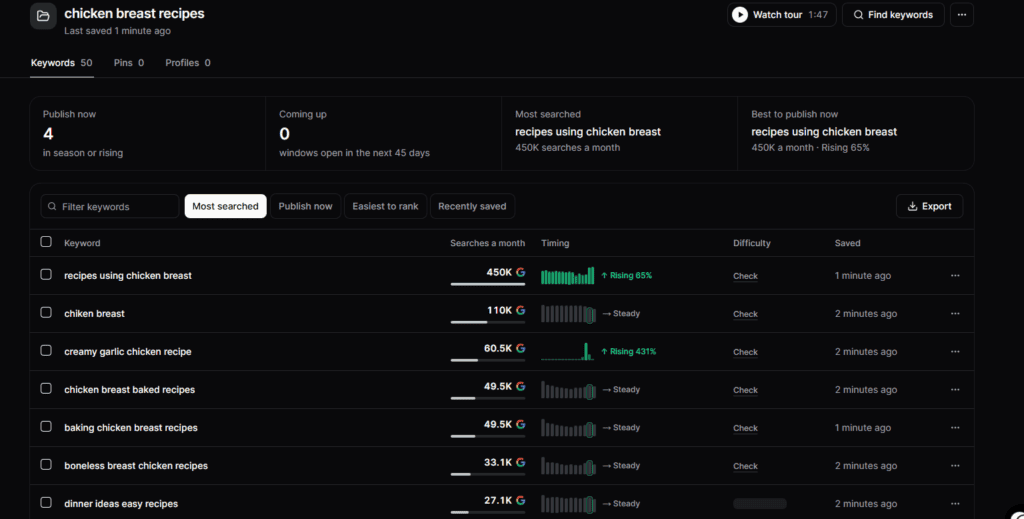
The Google badge identifies the source of this volume estimate. Check the source before treating a figure as Pinterest search demand.In my chicken test project, recipes using chicken breast showed 450K with a Google badge. I’d save that phrase as a research lead, then look at the Pinterest results and timing before deciding whether to queue a fresh Pin. A search figure, the terms associated with a ranking Pin, and a trend label each help answer a different question. How to Find Pinterest Keywords for Free
Pinsearch Topic Atlas: Exploring Keyword Ideas
I typed chicken and opened chicken breast recipes. The Atlas displayed 2.8 million searches and 44 variations. I could browse by ingredients, cooking methods, dishes, and other angles. If I already have an oven-baked recipe, for example, I can look for a narrower phrase and check its displayed demand. I compare phrases individually because the people searching for those variations can overlap.
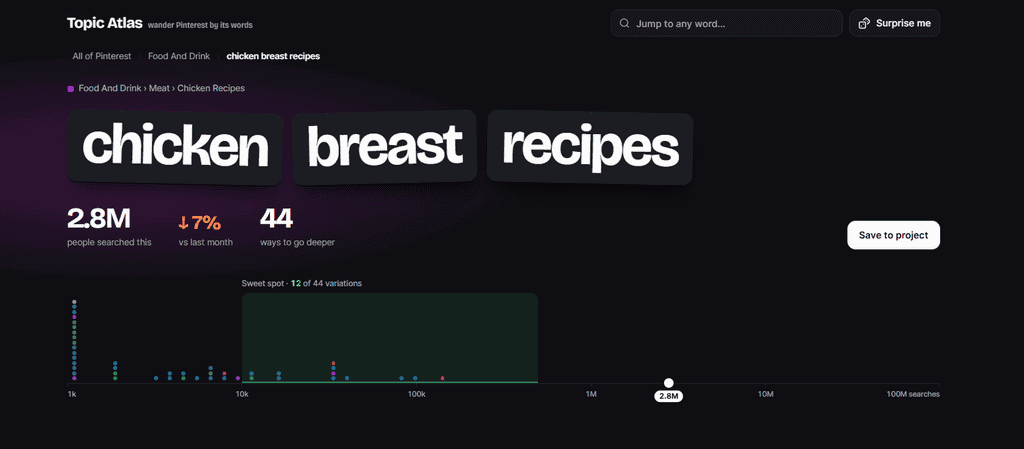
Some categories were more helpful than others. Under Styles & Looks, I got juicy and, oddly, fun. I’d also want to investigate tender and moist for this topic. In fact, easy moist chicken recipes turned up later alongside a ranking Pin in Pin Explorer. The Atlas returned an empty result when I moved the rising slider in this test. I liked the visual starting point and found more depth by continuing the search elsewhere in the dashboard.
Pin Explorer: Researching Ranking Pins and Competitors
Pin Explorer displayed 100 results for chicken breast recipes. In the table I could compare search position, saves, saves per day, posting age, and account size. The grid made it easier to see the actual graphics and compare photo crops, overlays, and layouts. Sorting by Most saved reordered the results while keeping the search rank visible. That’s useful when you’re trying to understand what people save and what appears near the top of search.
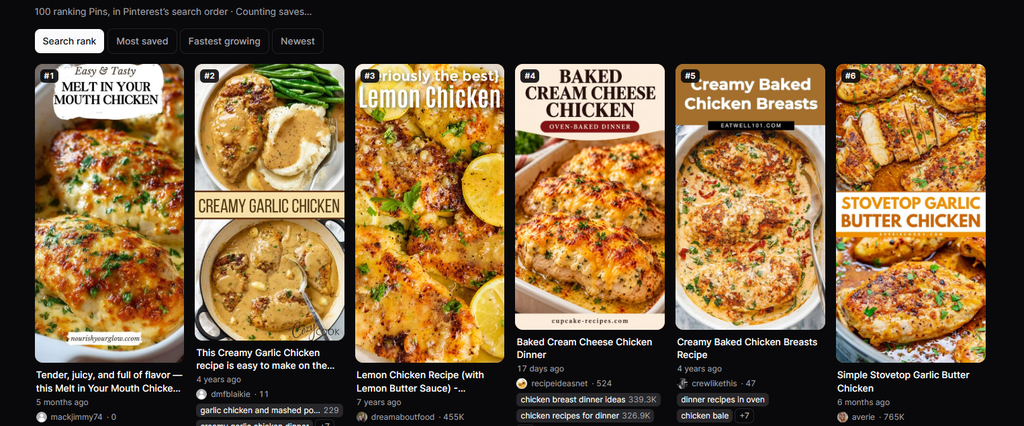
For batching, I liked sorting by Newest and looking at saves alongside it. Several 11-day-old Pins had one to four saves. A 17-day-old Baked Cream Cheese Chicken Dinner showed up at #4 with 129 saves. That’s where the content intelligence becomes useful. Looking at ranking position, Pin age, and saves together helps me identify which recipe angles deserve a closer look, then examine the imagery and associated keyword patterns across those results. I can use that research to spot content gaps, find a fresh approach for an existing article, and decide what belongs in the next batch. A snapshot doesn’t establish staying power, but it gives me something concrete to investigate and test.
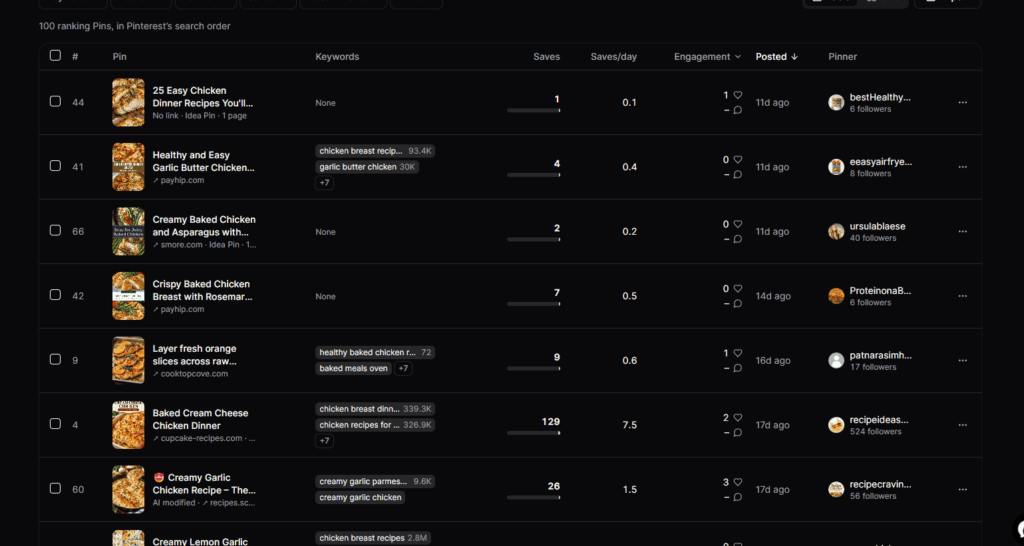
A different 17-day-old Pin promised a creamy garlic chicken dinner in 30 minutes and had no visible text overlay. I could see the terms Pinsearch displayed for it and click through to the account profile. The direct Pin links didn’t open on the examples I tried, and I couldn’t verify the cause. I also couldn’t tell from the display which phrases the creator had actually written. I used the lists as research leads and looked for wording that recurred across relevant Pins.
The profile showed more than 360 Pins per week, and the individual Pin was labelled AI modified. I chose to look closer because accessible chicken dinners made it a relevant content comparison. The account’s output was far above what I’d build by hand in Canva. If I were publishing five Pins a day, I’d use the research to test a clearer dinner promise or a different crop within a pace I could sustain, then measure that change before adjusting frequency.
Saving and Organizing Keywords in Pinsearch Projects
The keyword dropdown gave me Copy all and Save to project. That was one of the most practical parts of the dashboard. For a chicken breast content cluster, I could collect phrases from multiple Pins, then revisit them together when deciding what to promote or write. Fastest growing surfaced honey butter garlic chicken bites. My example project ended up with 50 keywords, with four flagged by Pinsearch as in season or rising.
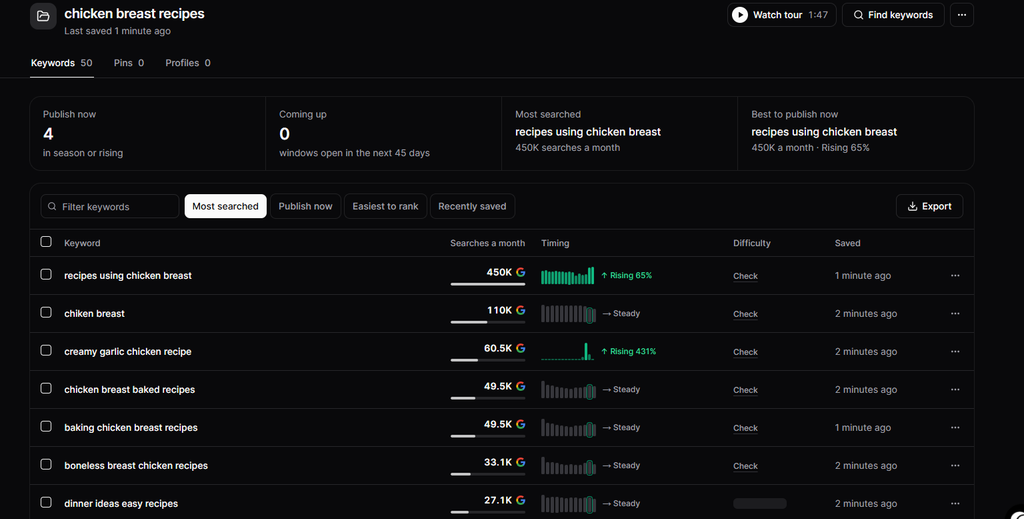
Here’s how I’d use a term like Tuscan chicken breast. If the Pinterest signal is rising and I already have a recipe that answers that search, I can put a fresh Pin into the next batch. If I have no matching recipe, it goes on my list of possible content gaps. Can You Use Different Keywords for Pinterest Pins?
Testing Pinsearch’s AI Pin Titles and Descriptions
I pasted keywords from Pin Intelligence into the titles and descriptions tool. It offered editable options and highlighted the phrases it used. Some descriptions worked in three or four relevant phrases naturally. I liked being able to see which ones were included. My brief was broad enough that I got both a 15-recipe roundup and single-recipe suggestions. That’s a reminder to give the tool the actual article, or at least a specific brief that states what the reader will find.
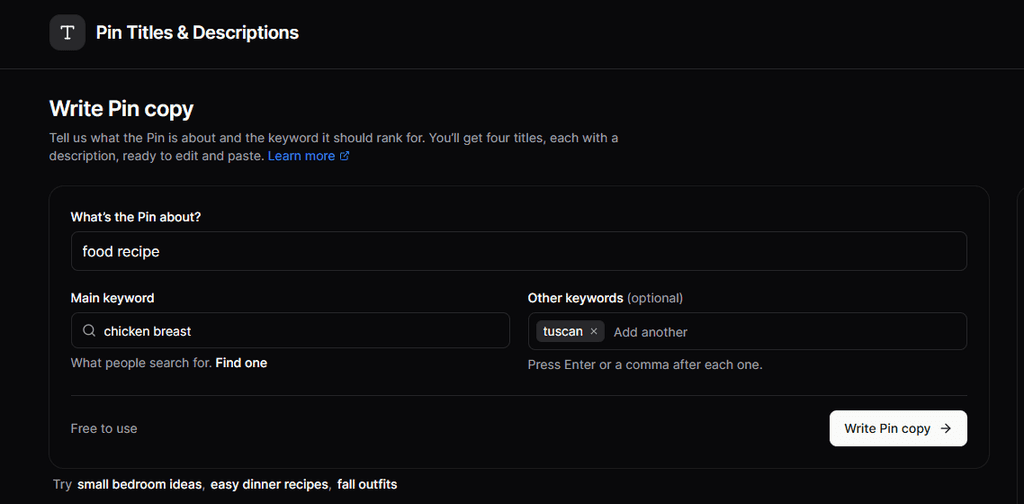
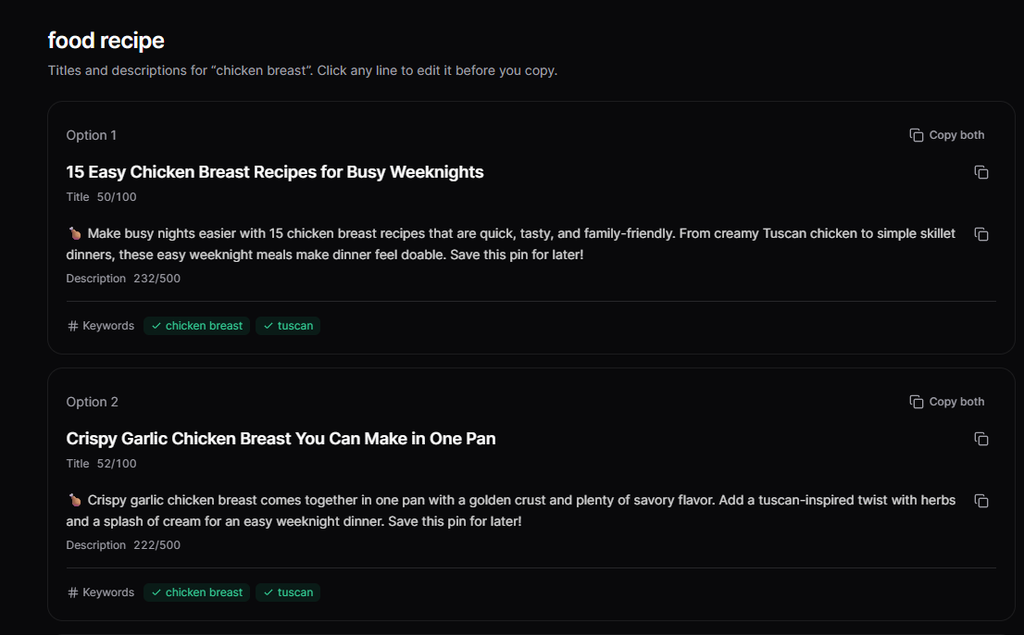
The creamy chicken draft had a recognizable dish and a useful serving idea, but the title leaned on how special dinner would feel. I’d make the title more specific and use the description to give readers details they can picture. Here’s how I’d write it if the destination recipe uses these ingredients and method:
Pin title
Creamy Tuscan Chicken Breast With Spinach and Sun-Dried Tomatoes
Pin description
This creamy Tuscan chicken breast recipe brings garlic, spinach, and sun-dried tomatoes together in a skillet sauce. Serve it over pasta or with crusty bread to soak up the sauce.
I’d add a time promise if the recipe supports it. The same dish should be recognizable in the photo, overlay, title, and landing page. How Pinterest Classifies Content Into Search Entities
I also tried the automatic copy option on a Charming Pen article. It chose Pinterest algorithm 2026 and Pinterest marketing strategy 2026. I’d seen the base phrases in other research, and the keyword results were comparable and accurate. I’d still want a more specific reason to click, such as which part of the algorithm the article explains and what the reader can check on their own account. The goal is to add relevant language and detail that helps the reader understand the Pin while also helping Pinterest’s AI understand more about the content, without drifting away from what the article actually covers.
Can Pinsearch Research a Complete Pin Package?
Using a Turnip Puff recipe as a test example, the first search mostly gave me variations of the recipe name. Searching separately for rutabaga, casseroles, make-ahead sides, and holidays uncovered new ways people might find the dish. Some of the useful casserole terms were buried under broader results. That test showed how much the choice of seed and the depth of the pull can change the outcome.
With a Mars Bar Crispy Cake test example, I used the upgraded ChatGPT connection to look at related searches, publishing timing, and the terms associated with top Pins. In the GB lookup, Mars Bar Crispy Cake Recipe returned 794 Pinterest monthly searches and a rising label. Mars Bar Rice Krispie Squares showed 2,000 Pinterest monthly searches and a steady pattern. I used GB for this example because the recipe uses terms like crispy cake and traybake. These figures are snapshots for that market.
My first four-Pin plan gave bake sale a slot. It was a legitimate idea for a batch of squares, but I moved to an occasion before fully exploring the names readers already use for this dish. When I compared the plan with my usual workflow, I realized Pinsearch had already surfaced enough evidence for a stronger set:
- Mars Bar Crispy Cake for the exact recipe and its rising signal.
- Mars Bar Squares for readers who know it as a cut dessert bar.
- Mars Bar Rice Krispie Squares with a No Marshmallows hook.
- Mars Bar Slice with a No Oven Needed hook.
I’d keep the bake-sale angle for a later batch. The detailed traybake lookup and keyword overview also gave me different trend labels, so I kept that term for its recipe fit and relied on the clearer exact-recipe signal to decide what went first. This was a test of research and planning. I didn’t measure how the resulting Pins ranked or performed after publication.
Using Pinsearch With ChatGPT
My original connection initially showed one keyword research action. When v2 arrived, Ahmed from Pinsearch explained that users on the older connection needed to disconnect and reconnect. That’s useful to keep in mind for future updates while you’re on a plan. I could then run a detailed keyword check in chat and see search history, timing, difficulty, and related terms from the top Pins. That was more useful to me than copying a keyword table back and forth.
The example below is from the MCP: I added the entire article to chatgpt and simply asked it to find keywords from Pinsearch.co that simple. I then reviewed the terms and was given a master keyword list.
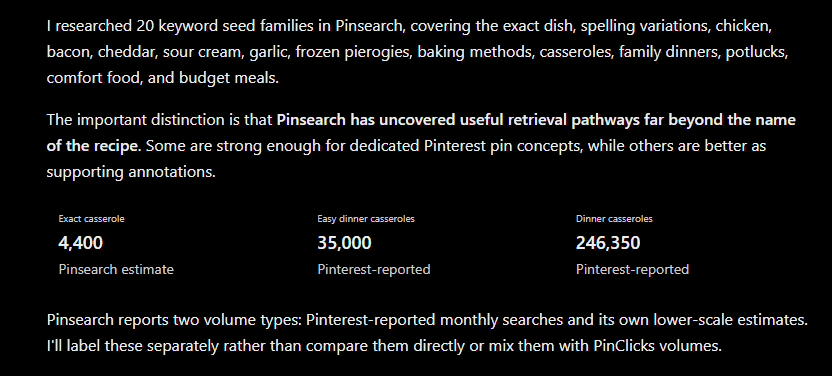
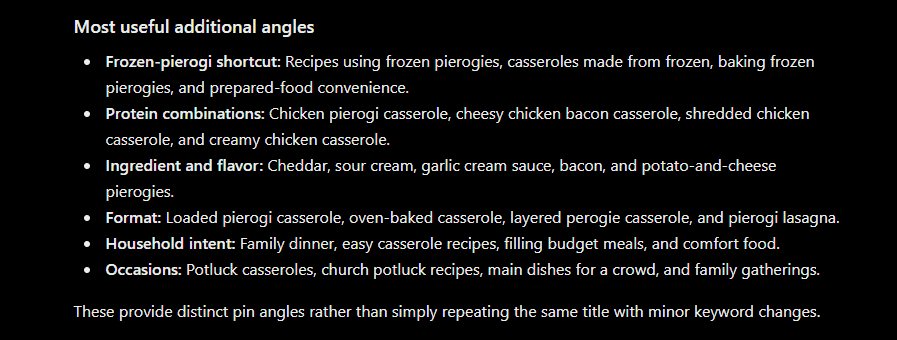
I hit a keyword research rate-limit message while testing across several example articles. The message didn’t specify whether it was an hourly or daily cap. Ahmed said he planned to raise the limit for Pro users. Pinsearch’s pricing page advertises unlimited research on paid plans, and I haven’t verified the revised limits for batch use through ChatGPT. Pinsearch pricing
How I’d Compare Pinsearch With Other Pinterest Tools
PinClicks, Pin Inspector, and Tailwind are names you’ll come across when comparing Pinterest tools. This review wasn’t a controlled test of all four, so I wouldn’t use it to claim that one has the most accurate data or produces better traffic.
What I wanted to establish was whether Pinsearch could handle a complete research task. In my examples, it gave me enough material to move from an initial topic to a four-Pin plan. The quality of that plan still depended on how thoroughly I explored the topic and how carefully I matched the terms to the article.
If you’re comparing it with another tool, run the same familiar article through both. Look at the relevance of the keywords, how clearly the data sources are identified, what you can learn from the ranking Pins, and how easily you can save and reuse the research. Then consider whether you’ll use the creation and scheduling features you’re also paying for.
If you’re curious about the rest of my setup, I’ve also shared the tools I use for blogging and Pinterest management.
Pinsearch Pin Maker and Scheduling: What I Tested
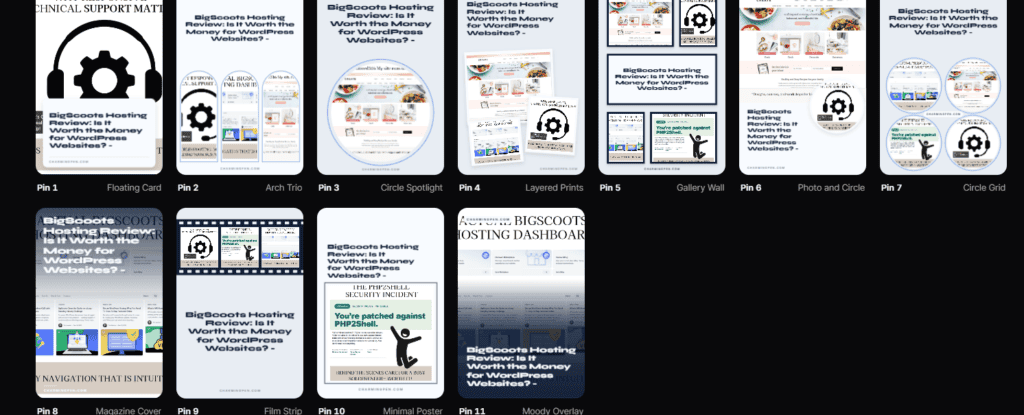
My early free-plan Pin Maker test generated 11 Pins from a food article. I could edit individual drafts, including overlay text and colours. The first batch repeated a headline, and several layouts and colour combinations didn’t suit the food photos in my example. I make multiple Pins for one article to test different angles, so repeating the headline created extra editing work for me. I’d keep designing these graphics in Canva and use Pinsearch’s option to upload a finished image. I haven’t put Pro custom templates through the same food test.
Below you can see how they are with an article from my blog here.
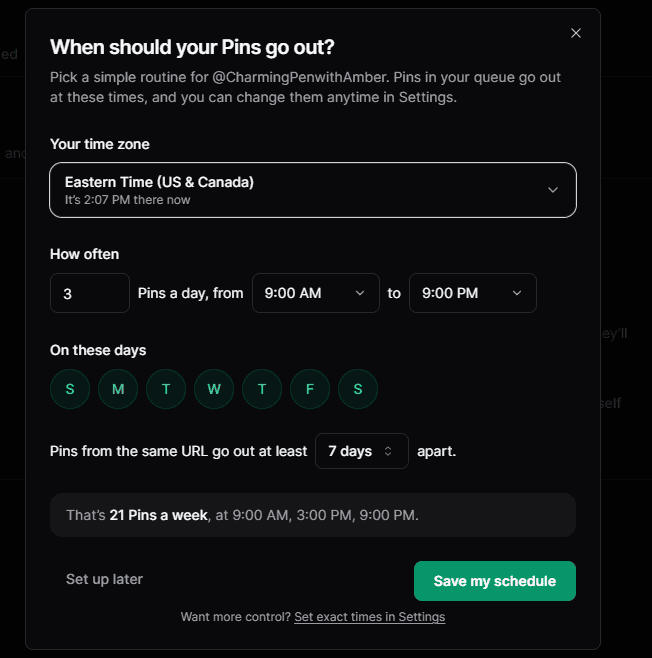
When I connected Charming Pen, the draft workflow showed my existing boards and offered to write the title, description, and alt text. The scheduling setup exposed time zone, posting days, frequency, and spacing for Pins that share a URL. I didn’t see controls for editing existing board titles and descriptions in the dashboard screens I used. That doesn’t mean they won’t be added in the future. Pinsearch also offers automation, reporting, and AI blog article tools. Blog generation is less central to my own work, and I haven’t evaluated an article from generation through WordPress.
How I’d Test Pinsearch Before Paying
I started with the free account, and that’s where I’d suggest starting too. Pick one article you know well and work through the research before deciding whether you need a subscription.
Can you find useful variations beyond the obvious recipe or article name? Can you inspect relevant Pins and see angles worth exploring? Does saving those terms into a project make your next batch easier to plan? Those are the things I’d want to know before paying.
My early free-plan Pin Maker test also gave me a chance to assess the designs and editing options. That mattered because useful keyword research doesn’t automatically mean the graphics will suit your brand.
The free plan has usage limits, so it’s a way to test the workflow before committing. My fuller review included guest access to Pro; everything I explored here shouldn’t be taken as a free-plan feature.
Who Is Pinsearch Best For?
For a blogger managing their own Pinterest account, I can see the appeal of keeping research, Pin creation, and scheduling together. You can investigate a topic, collect useful phrases, and work toward a finished Pin without piecing together several subscriptions. Whether you’ll use all those features is the more important question.
For a Pinterest manager, the content intelligence is what interested me most. Looking at ranking position, saves, Pin age, imagery, and related terms together gives me more to work with than a keyword list alone. I can use those observations to identify content gaps, reconsider how an existing article is presented, and decide which angles deserve space in the next batch.
If you already have a design and scheduling workflow you like, the decision becomes simpler: does the research justify the subscription on its own? For me, Pin Explorer, Projects, and the upgraded ChatGPT connection would carry the most weight. If you’d rather have help turning the research into a content plan, you can explore my Pinterest management services.
What I Liked—and What Needs Work
The quick keyword handoff was a highlight. Being able to copy terms from ranking Pins or save them straight into Projects made the research easier to carry forward. I also liked moving between the results table, the actual graphics, and the account profile to build a fuller picture of the content.
The upgraded ChatGPT connection added another useful way to work. I could investigate related searches, history, and publishing timing in the conversation where I was already developing a plan.
The generated copy needed editorial judgment. Some descriptions incorporated relevant phrases naturally, but I still wanted more specific titles and clearer reasons to click. The food graphics needed more adjustment than I wanted, including repeated headlines and layouts that didn’t suit the example photos.
A few things also remained unresolved in my testing: direct Pin links didn’t open on the examples I tried, the rising slider returned an empty result in Topic Atlas, and I encountered a connector research limit whose reset period wasn’t clear. Those are observations from my test, and they’re things I’d revisit as the tool develops.
Pinsearch Pricing and Plan Options
Pinsearch lists Basic at $27 per month for one account, Plus at $49 for up to three, and Pro at $79 for up to ten. For one or two accounts, I’d start on the free plan and run one familiar topic through Topic Atlas, Pin Explorer, and Projects. There’s a learning curve because the dashboard packs in a lot. Give yourself time to find the features you’d actually return to. At $79 a month, I’d want to use the tool most working days or lean on enough of its publishing features to justify the expense. Pinsearch pricing
My verdict: For a food blogger who wants one paid Pinterest research tool, Pinsearch would be enough for me to take a recipe from keyword discovery to a four-Pin plan. For my client work, its strongest features were the quick keyword handoff into Projects and the ability to look behind a search result at the individual Pins and accounts. I’d keep my own design workflow and edit the generated copy before using it.
If you already use Pinsearch to schedule Pins or run automations, I’d love to hear how those features fit into your week.
You Asked, Amber Answers

Yes—this image was made with AI. As a small business owner wearing a lot of hats, I don’t always have the time to arrange a professional photo shoot, so this is one way I create polished visuals for my business.